Logging in
Open datact.svarmi.com in a modern browser such as Chrome, Edge, Firefox or Safari. If you are not logged in, you are taken to the DATACT login page.
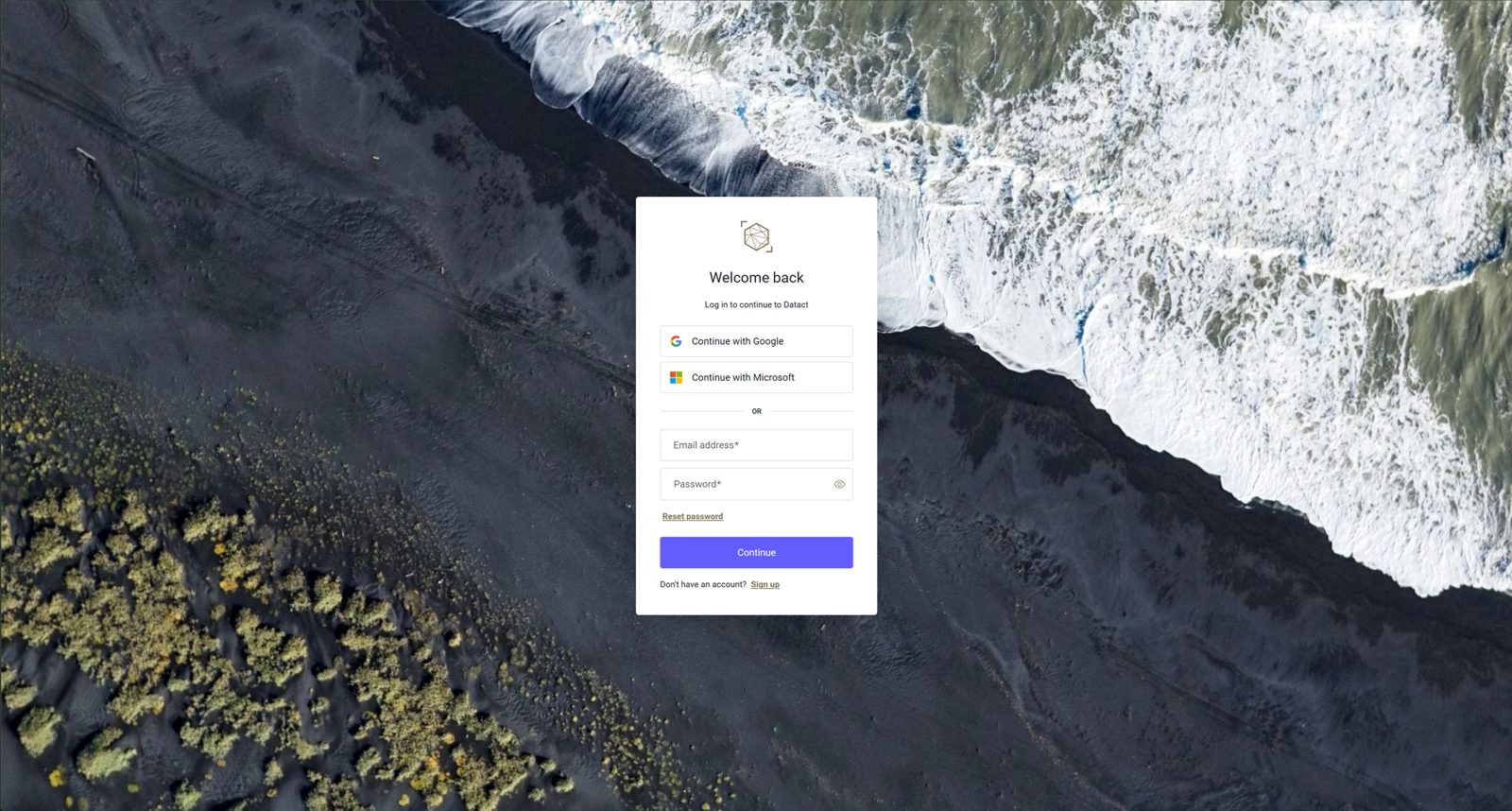
Signing in
The login page says Welcome back. You can sign in in any of these ways:
- Continue with Google. Use your Google account. If you are already signed in to Google in the browser, you don't need a password.
- Continue with Microsoft. Use your work Microsoft account.
- Email and password. Enter the email address you were invited with and your password, then click Continue.
Forgot your password? Click Reset password under the password field and follow the email we send you.
Organisations that require Microsoft sign-in
Some organisations require their users to sign in with Microsoft. If you see a message saying your organisation must use Microsoft Single Sign-On, log out and sign in again with Continue with Microsoft.
Accepting the terms
The first time you log in, DATACT asks you to accept the privacy policy and terms of service. You only need to do this once.
Where you land
After you log in, DATACT opens the last channel you used. If you followed a link to a pin, dataset or view, DATACT takes you straight there. The link is kept when you log in. See Links to data.
Starting a free trial
You can create a new team without an invitation and try DATACT free for 14 days:
- Choose a plan and click Start free trial.
- Create your DATACT account on the Welcome page: use Continue with Google, Continue with Microsoft, or enter an email address and a password and click Continue.
- Verify your email address. Open the email we send you, click the link, then click I've verified my email.
- Name your team.
- Click Continue to payment and add a payment card. Your card is not charged until the trial ends, and you can cancel any time before then.
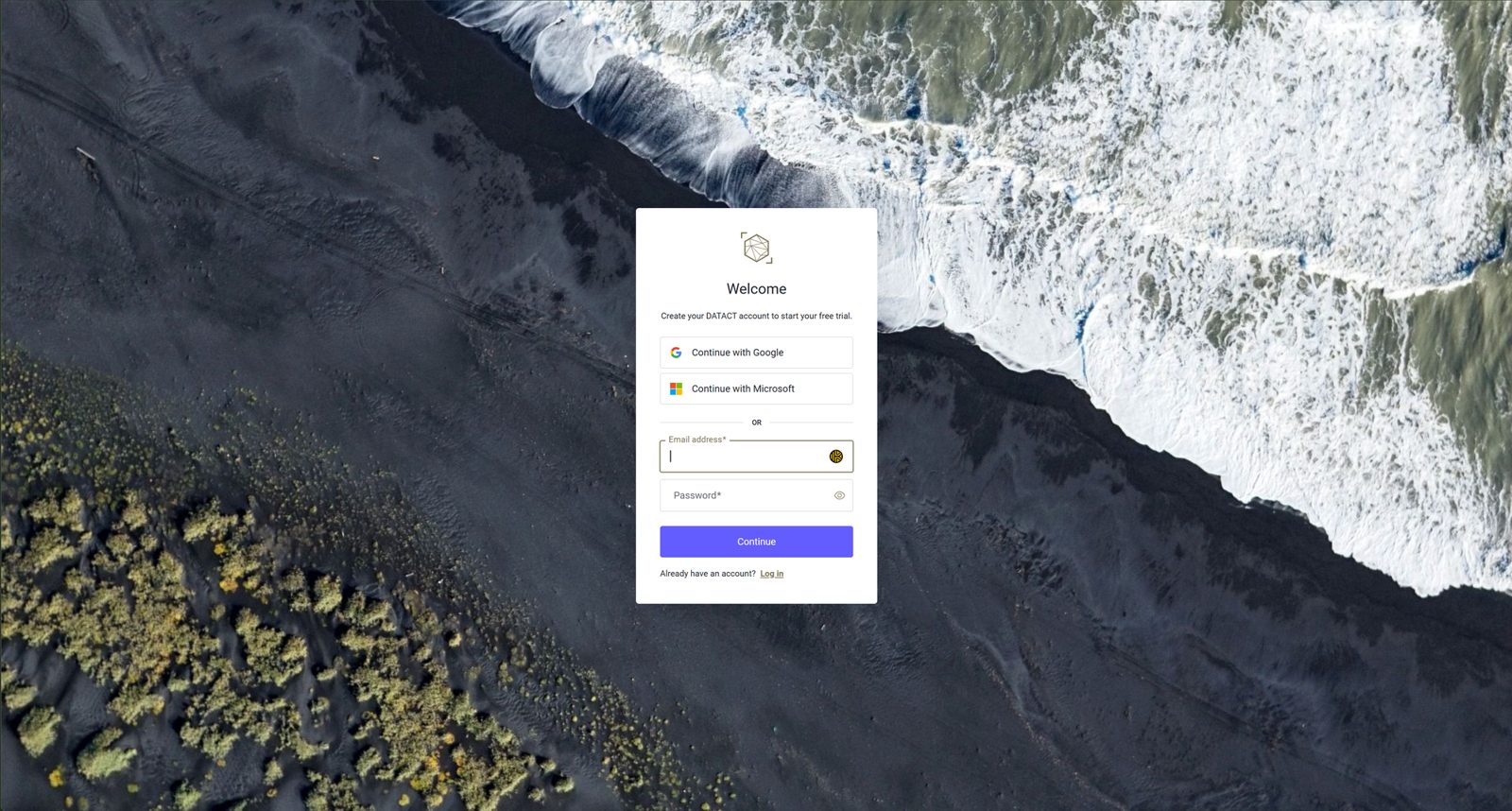
You can also reach the Welcome page from the login page: click Sign up next to Don't have an account?. If you create an account this way, DATACT then offers you Start a free trial. Already have an account? Click Log in on the Welcome page.
When the trial is set up, you are the Owner of the new team. You can follow your trial and usage in Plan and usage.
Tip
If you only want to join a team that already exists, don't start a trial. Ask the team's owner to invite you instead.
If you can't log in
| Message or problem | What to do |
|---|---|
| You never received the invitation | Check your spam folder, or ask the person who invited you to send it again. |
| You forgot your password | Click Reset password on the login page, or sign in with Google or Microsoft instead. |
| No channels found for user | You are logged in, but you are not a member of any team or channel yet. Ask a team owner to invite you, or click Start a free trial if it is offered. |
| Access denied to the requested channel | You opened a link to a channel you are not a member of. Ask the team owner to add you. |
| User only part of inactive teams | Your team's subscription has ended. Ask your team owner, or contact sales@svarmi.com. |
| You are logged in with the wrong account | Log out (see below) and sign in again with the email address you were invited with. |
Logging out
- Click the ⋯ button next to your name at the top right of the screen.
- Choose Log out and confirm.
User menu open with Log out
File: assets/media/getting-started/logging-in-user-menu.png
Show: the user chip at the top right with the ⋯ menu open, showing User Settings, Support and Log out.