Connecting in ArcGIS Pro
Stream the 2D datasets of a DATACT channel into ArcGIS Pro as a WMS server connection.
Who can do this: Anyone with a DATACT WMS API key
Video tutorial (planned): DATACT in ArcGIS Pro
YouTube ID: TBD · ~2 min Covers: New WMS Server with the X-Api-Key custom parameter and adding layers to a map.
Before you start
- Create a WMS API key and copy the WMS URL for the channel you want.
Step 1: Create a new WMS server connection
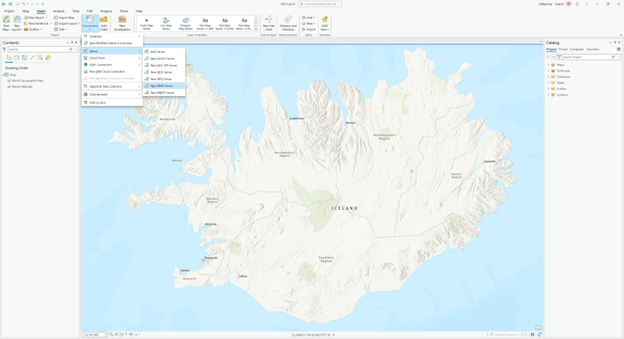
Open ArcGIS Pro and create or open a map project. Go to the Insert tab → Connections → Server → New WMS Server.
Step 2: Fill in the connection details
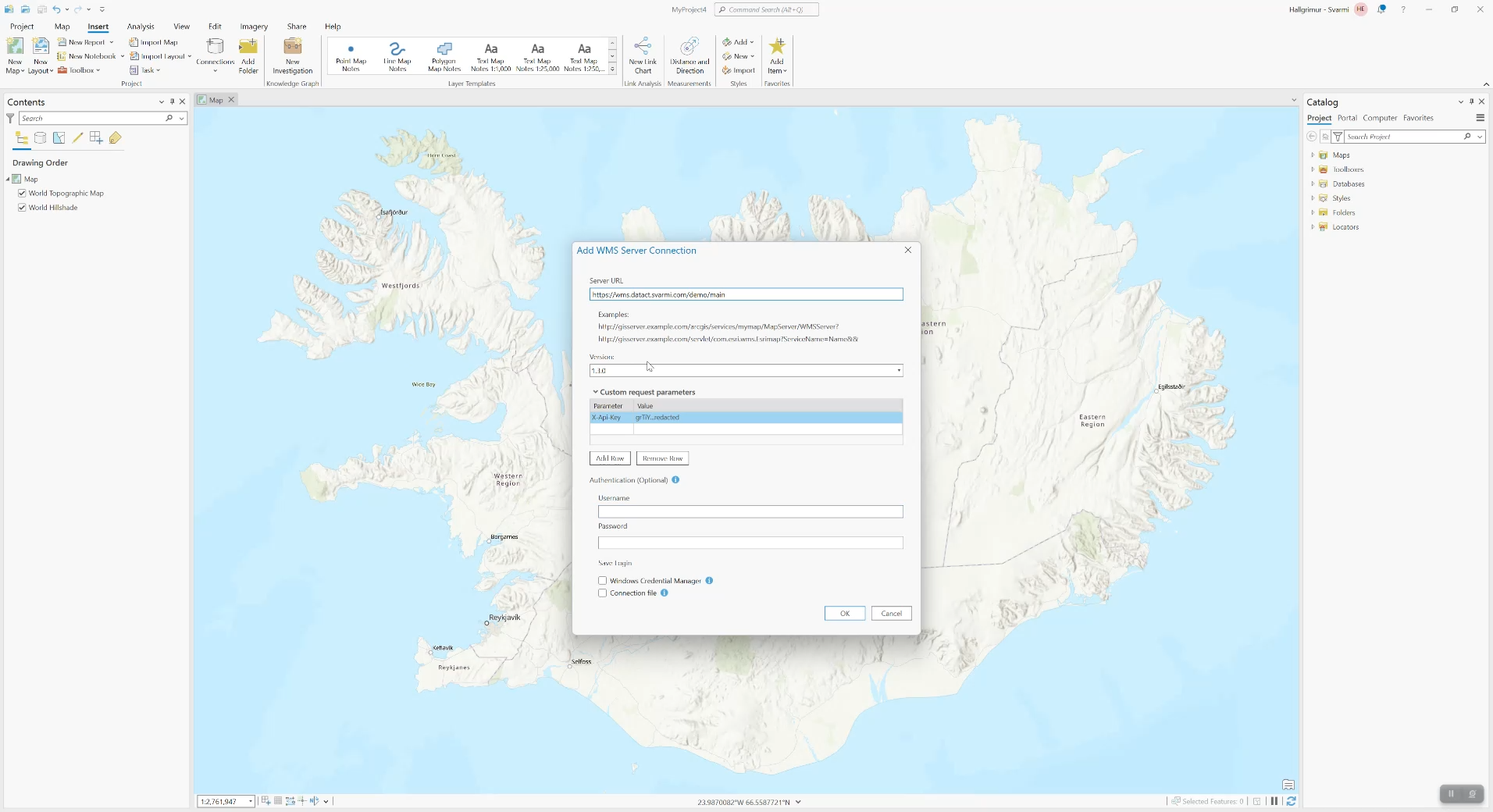
In the connection window:
- Server URL: the WMS URL you copied from DATACT, for example
https://wms.datact.svarmi.com/demo/main - Version:
1.3.0 - Custom request parameters:
- Parameter:
X-Api-Key - Value: your DATACT WMS API key
- Parameter:
- Clear the Windows Credential Manager checkbox
- Click OK
Step 3: Add data to the map
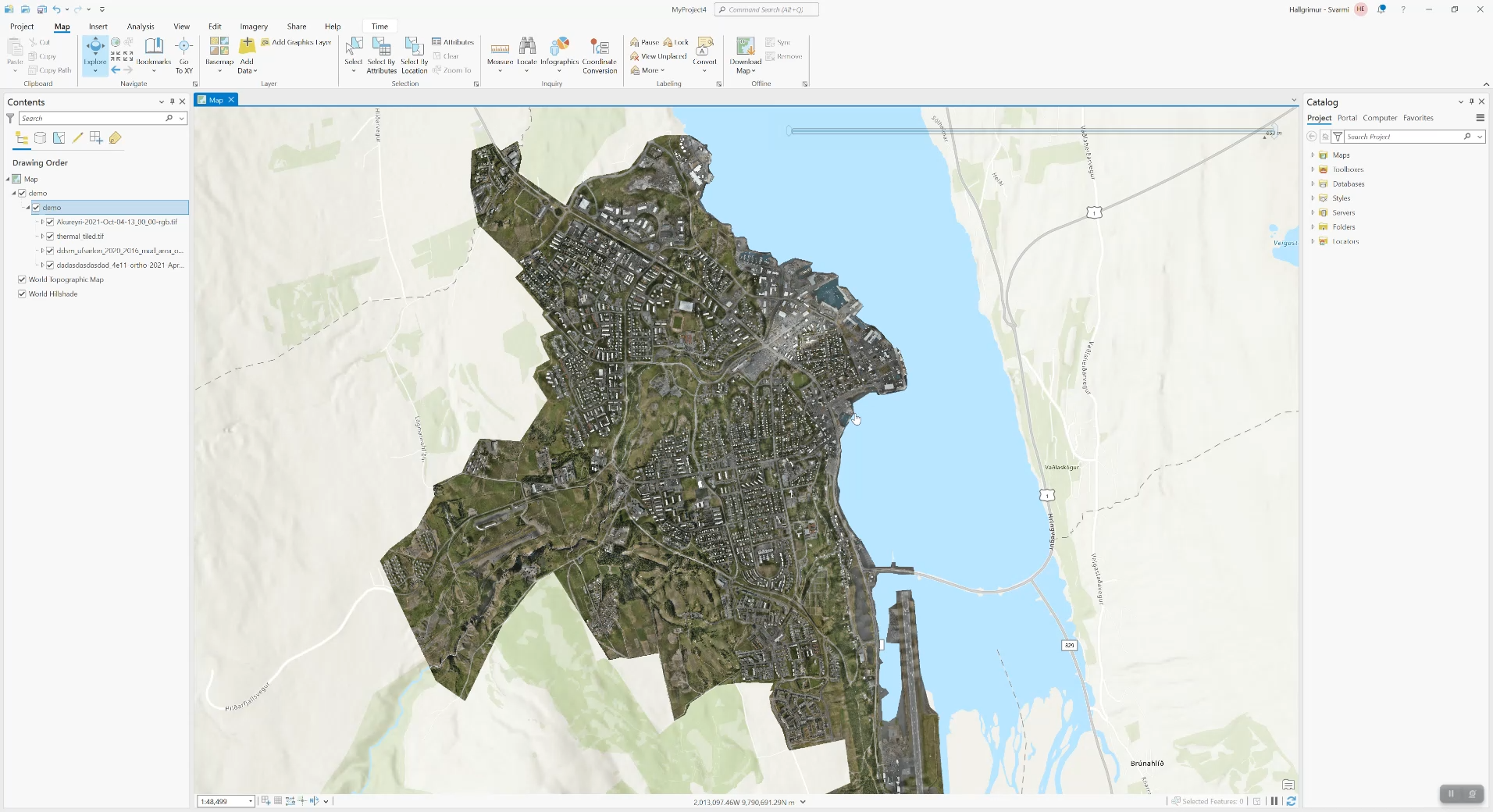
Go to the Map tab → Add Data → Data → Servers, select your channel under wms.datact.svarmi.com, and click OK.
In the Contents pane, open the List By Data Source tab and expand your channel under https://wms.datact.svarmi.com to turn layers on and off.
Connecting to another channel
Each channel has its own WMS URL. Switch to that channel in DATACT, copy its WMS URL, and create a new WMS server connection for it in ArcGIS Pro. You can reuse the same API key.
Warning
Your key only works in the team it was created in. To stream a channel in another team, switch to that team in DATACT and create a key there.